CSS Box Model Explained – Margin, Border and Padding with Practical Examples
Published: 08 Oct, 2026 | Author: CCI Admin | Category: CSS / Web Development
The CSS Box Model is one of the most important concepts in web development. Every HTML element displayed on a webpage is treated as a rectangular box.
Understanding the CSS Box Model helps developers control the size, spacing, borders, and layout of elements.
What is the CSS Box Model?
The CSS Box Model describes how the browser calculates the space occupied by an HTML element.
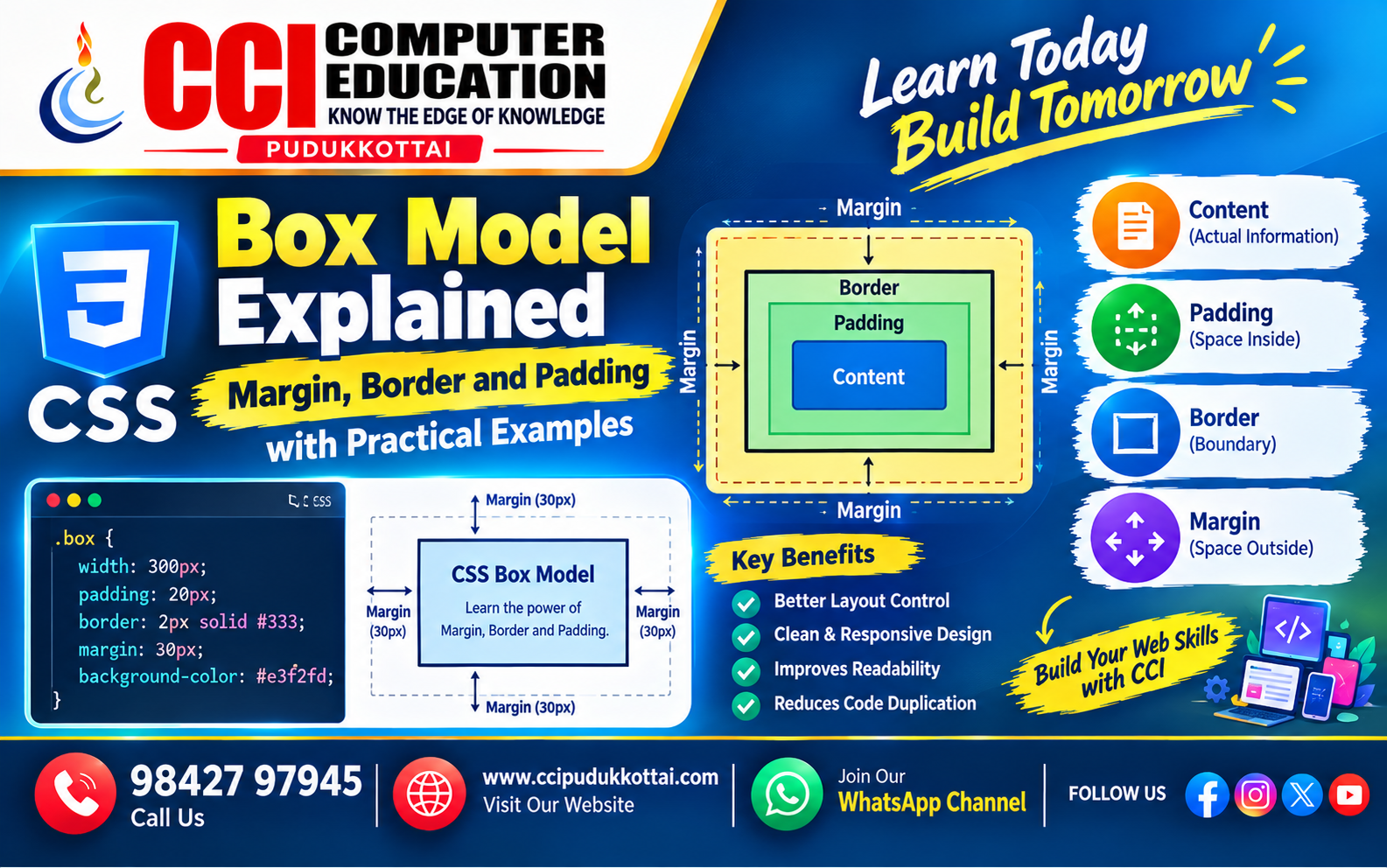
Every element consists of four main parts:
- Content – The actual text or content.
- Padding – Space between content and border.
- Border – The boundary around the element.
- Margin – Space outside the border.
CSS Box Model Structure
+--------------------------------------+
|              Margin                  |
|   +------------------------------+   |
|   |           Border             |   |
|   |   +----------------------+   |   |
|   |   |       Padding        |   |   |
|   |   |   +--------------+   |   |   |
|   |   |   |   Content    |   |   |   |
|   |   |   +--------------+   |   |   |   |
|   |   +----------------------+   |   |
|   +------------------------------+   |
+--------------------------------------+
The order from inside to outside is:
Content → Padding → Border → Margin
1. Content
The content is the actual information inside an HTML element. It can be text, an image, a button, or other HTML elements.
<div class="box">
    Welcome to CCI Computer Education
</div>
.box {
    width: 300px;
    height: 100px;
}
Here, the width and height define the content area when using the default CSS box sizing behavior.
2. Padding
Padding creates space between the content and the border. It makes the content more comfortable to read and prevents it from touching the border.
.box {
    padding: 20px;
    border: 2px solid black;
}
In this example, 20 pixels of space are added around the content inside the border.
Different Padding Values
.box {
    padding-top: 10px;
    padding-right: 20px;
    padding-bottom: 15px;
    padding-left: 25px;
}
Padding can also be written using shorthand:
.box {
    padding: 10px 20px 15px 25px;
}
The order is: Top → Right → Bottom → Left.
3. Border
A border surrounds the content and padding of an element. It can have different widths, styles, and colors.
.box {
    border: 2px solid blue;
}
Common Border Styles
.box1 {
    border: 2px solid black;
}

.box2 {
    border: 2px dashed blue;
}

.box3 {
    border: 2px dotted red;
}
Common border styles include: solid, dashed, dotted, double, and more.
4. Margin
Margin creates space outside an element's border. It is commonly used to create space between different elements.
.box {
    margin: 20px;
}
This adds 20 pixels of space around the outside of the element.
Different Margin Values
.box {
    margin-top: 10px;
    margin-right: 20px;
    margin-bottom: 15px;
    margin-left: 25px;
}
Margin can also be written using shorthand:
.box {
    margin: 10px 20px 15px 25px;
}
Margin vs Padding
| Feature | Margin | Padding |
|---|---|---|
| Location | Outside the border | Inside the border |
| Purpose | Creates space between elements | Creates space around content |
| Background | Element background does not extend into margin | Element background extends through padding |
| Example | margin: 20px; | padding: 20px; |
Complete CSS Box Model Example
<div class="card">
    <h2>CCI Computer Education</h2>
    <p>Learn Programming and Web Development</p>
</div>
.card {
    width: 300px;
    padding: 20px;
    border: 3px solid #333;
    margin: 30px;
}
In this example:
- 300px represents the content width.
- 20px creates space inside the border.
- 3px creates the border.
- 30px creates space outside the element.
CSS Box Sizing
The box-sizing property controls how the width and height of an element are calculated.
One of the most commonly used values is:
box-sizing: border-box;
With border-box, the specified width and height include the content, padding, and border.
Example
* {
    box-sizing: border-box;
}

.card {
    width: 300px;
    padding: 20px;
    border: 5px solid black;
}
This approach makes layouts easier to control, especially in responsive web design.
Box Model in a Real-World Website
Consider a website containing several course cards:
+------------------------------+
|        Course Card           |
|  +------------------------+  |
|  |        Padding         |  |
|  |   Java Programming     |  |
|  |   Learn OOP Concepts   |  |
|  +------------------------+  |
|           Border             |
+------------------------------+
          Margin
Developers can use padding to create comfortable spacing inside each card and margin to separate one card from another.
Common CSS Box Model Mistakes
- Confusing margin with padding.
- Forgetting that borders add to the element's size with the default box model.
- Using too much margin and creating unnecessary empty space.
- Using fixed sizes without considering responsive layouts.
- Not understanding the effect of box-sizing.
Faculty Tip
A simple way to remember the CSS Box Model is:
Content
   ↓
Padding
   ↓
Border
   ↓
Margin
Think of a gift box: the content is the gift, padding is the space around it, border is the box boundary, and margin is the space separating the box from other boxes.
Practice Task for Students
Create a simple Student Profile Card using HTML and CSS.
- Create a card using a div.
- Set a width of 300px.
- Add 20px padding.
- Add a 2px border.
- Add 30px margin.
- Add a background color.
- Experiment with different margin and padding values.
Frequently Asked Questions
1. What is the CSS Box Model?
The CSS Box Model describes how an HTML element's content, padding, border, and margin determine its size and spacing.
2. What is padding in CSS?
Padding is the space between the content and the border of an element.
3. What is margin in CSS?
Margin is the space outside an element's border.
4. What is the difference between margin and padding?
Padding creates space inside the border, while margin creates space outside the border.
5. What does box-sizing: border-box do?
It makes the specified width and height include the element's content, padding, and border.
6. Why is the CSS Box Model important?
It helps developers control element dimensions, spacing, alignment, and overall webpage layout.
Conclusion
The CSS Box Model is a fundamental concept for every web developer. Understanding content, padding, border, and margin makes it much easier to design clean and responsive webpages.
Beginners should practice changing each value and observe how the element changes on the webpage. This is one of the best ways to understand CSS layout.
What to Learn Next?
- CSS Display Property
- CSS Position Property
- CSS Flexbox
- CSS Grid
- Responsive Web Design
- CSS Media Queries
Related CCI Blogs
- How a Website Works – From Browser to Server Explained
- CSS Selectors Explained for Beginners – How to Select and Style HTML Elements
- HTML Semantic Elements – Build Meaningful and SEO-Friendly Web Pages
Learn More About Web Development
Want to learn HTML, CSS, JavaScript, and other web development technologies? CCI Computer Education helps students build their skills through practical coding exercises and real-world projects.
Learn Web Development and start building your own websites with CCI.
Contact CCI Computer Education – Pudukkottai
Want to learn CSS and Web Development?👆Click here
Call: 98427 97945 | Website: ccipudukkottai.com
WhatsApp Channel: Join CCI WhatsApp Channel
CCI Computer Education – Learn Today, Build Tomorrow.